Jadeite Help
Jadeite is a graphical user interface for code development and debugging, for use within a GemStone environment. Jadeite for Pharo is designed to work with Rowan 3, but can be used in a base GemStone image by installing a Rowan stub (v3.7.5 or above). The same version of Jadeite can be used with both Rowan and non-Rowan servers.
The GitHub project is at https://github.com/GemTalk/JadeiteForPharo
This help assumes you are familiar with GemStone Smalltalk. For more on GemStone Smalltalk, including documentation and installation guides, see https://gemtalksystems.com/products/gs64/versions37x/.
Reporting Issues
Jadeite is under active development. If you find problems or missing features, you may report an issue on the GitHub project, https://github.com/GemTalk/JadeiteForPharo/issues/.
Check for existing issues before reporting a new issue, and in your report, include:
- The SHAs of the git projects; see Version numbers for issue reporting
- A screen shot, if appropriate.
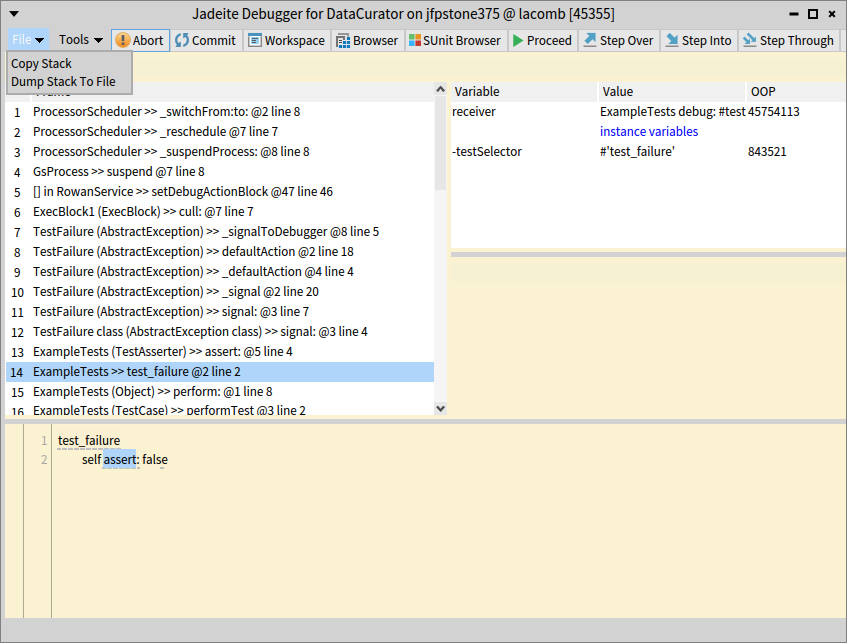
- If you encounter a Jadeite walkback, the full stack.This can be easily captured using the File > Dump Stack To File menu item; see Full stack trace reports.
You may also encounter a Pharo walkback, which provides a different interface. To get a stack from a Pharo walkback, use the pop up menu in the frame list of the debugger, and use the menu item Stack > Copy Stack to Clipboard.
Installation and Login
Jadeite installation requires that you install Pharo, clone several required GitHub projects, and download the appropriate GemStone server shared libraries. The Jadeite git repostitory includes a script that loads the required projects into a Pharo 13 image, and opens a login dialog.
You must also have a GemStone server environment installed, configured, and running, in order to log in. Jadeite can login either to a GemStone repository with Rowan3 (based on extent0.rowan3.dbf), or a standard GemStone repository (based on extent0.dbf) with a Rowan stub loaded.
For instructions on setting up the GemStone Rowan3 server, or installing the Rowan stub, and for installing Jadeite for Pharo, see the GitHub project:
https://github.com/GemTalk/JadeiteForPharo/blob/main375/README.md
Jadeite Connection Launcher
The Jadeite Connection Launcher launches automatically after installation. You can open it using the Pharo menu item Library > Jadeite Launcher.
Figure 1.1 Jadeite Connection Launcher
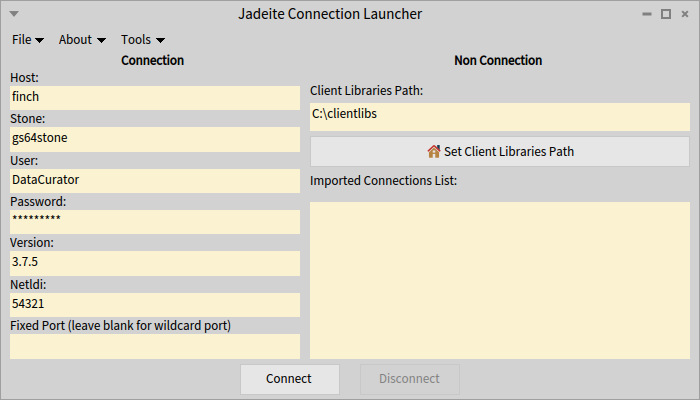
The left fields are related to the connection. The connection can be exported to a disk file and imported from a disk file. Imported connections are listed on the right.
The Client Libraries Path must point to a directory on the client in which the GemStone server shared libraries are located. Jadeite expects a directory structure with the shared libraries under clientLibsDir/version/64bit/. This is not part of a connection and must be entered independently.
Clientlibs can be downloaded from the GemTalk website; the zip contains a folder with the version number, which can be copied into your clientlibs directory. The unreleased v3.7.5 libraries are not publically available; contact GemTalk for alpha or prerelease libraries.
Version numbers for issue reporting
Note the menu item About > Git Commit IDs. This includes information about the specific versions of all projects (on client and server), and should be provided when reporting problems or issues with Jadeite.
To format the Git Commit Ids report for use in a GitHub issue, use the button at the bottom of the report, Copy to Clipboard in Markdown.
Reporting server commit IDs requires a login to the GemStone server; Jadeite will use the most recent credentials to login if the Jadeite is not currently logged in.
1. Console and System Browser, for Jadeite for Pharo with Rowan
The same version of Jadeite supports login to both a Rowan extent and a base exetent with the Rowan stub. There are some differences in presentation. This section describes the Rowan 3 environment. For the Rowan Stub environment, see Console and System Browser, for Jadeite for Pharo without Rowan.
Jadeite Console
If your login to GemStone from the Launcher was successful, the Jadeite Console will appear. The Jadeite Console is the main window of the Jadeite application; when you shut down the Console, Jadeite logs out.
Figure 1.2 Jadeite Console
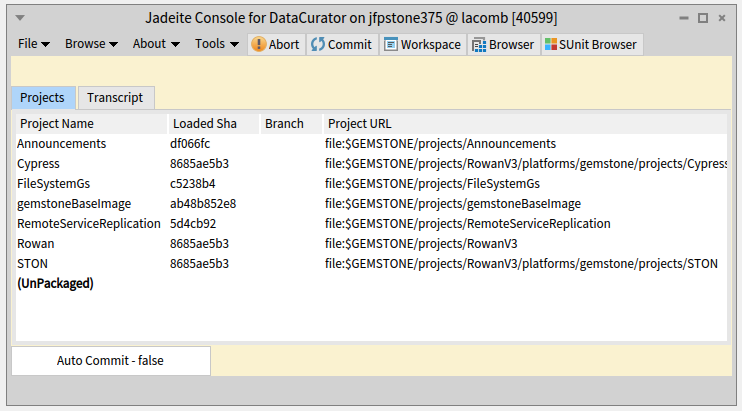
The Console lists the Rowan projects that are loaded into the image, with the sha and Project URL. By default, if you have not attached your GemStone server projects to a clone of the project, what is loaded refers to projects that are included in the GemStone distribution.
The Console’s menu bar includes buttons for some common functions, as well as drop down menus. From the Console, you can open the major tools: Workspace, System Browser, and SUnit Browser, as well as other tools.
The menu options on the Console to manage projects, and the font decorations, are similar to those on the System Browser and are described below.
System Browser
The System Browser allows you to browse and modify your projects, packages, classes, and methods.
Figure 1.3 System Browser
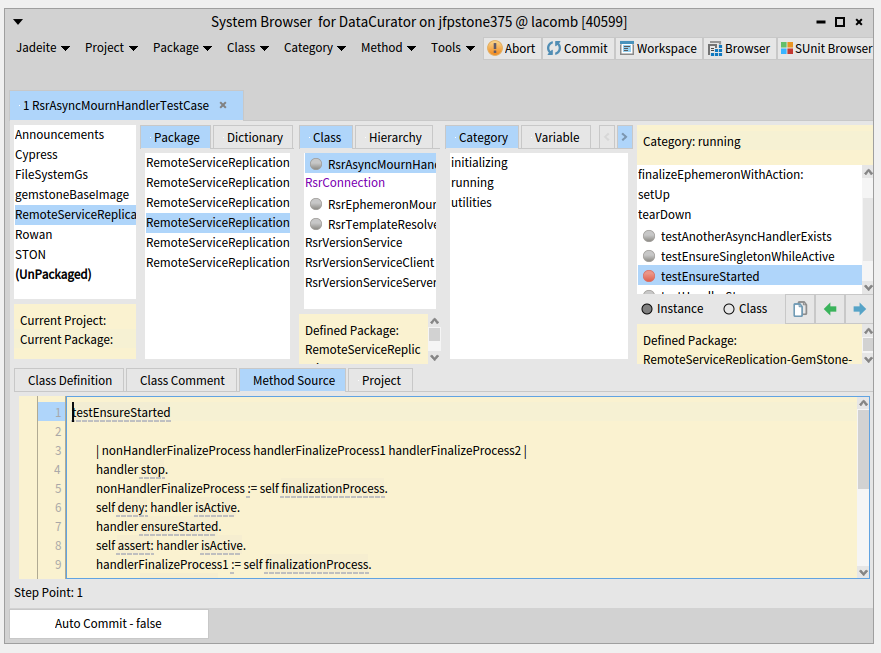
The leftmost column in the System Browser is the Project pane, listing the loaded Projects. A Rowan Project is composed of Packages, which are listed in the next column.
The Package pane also has a tab allowing you a SymbolDictionary view.
Selecting either a Package or a SymbolDictionary allows you to view a list of classes.
Project Pane - font decorations indicating status
A Rowan project is the in-smalltalk-image version of code that is also stored on disk, in a git-based rowan-format directory structure. You can load into the image from the git repository, or write/commit the image state to the git repository.
Git operations such as commit, checkout, or pull can also be performed outside of jadeite (on the command line, or using other tools).
To allow you to coordinate between the in-image state and the on-disk state, the color and font (normal bold, or italic) for a Project's name in the Console's Project List or the System Browser Project Pane indicates the status of the Project in the image, vs. the on-disk status. Parenthesis are also meaningful.
When a Project is selected, the lower pane provides more details, when the lower pane Project tab is selected. This includes explicit explanation of the on-disk and in image-status.
Figure 1.4 Project Pane of a Project Browser
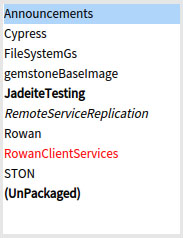
This example shows the following decorations:
- Normal font for a Project's name (that is, not red, bold, or italic) indicates that it is loaded, and there are no changes either in the image or on disk.
- Bold font indicate that the Project has changes in the image that have not been written to disk.
- Italic font indicates that the Project is dirty on disk, with respect to the git repository. For example, if you have previously written the project to disk without doing a git commit, the disk is dirty, although the image is clean with respect to the disk. Dirty on disk, however, can also mean that you have edited files on disk, or made changes from Jadeite and not saved your image before restarting.
- Red indicates there is skew; the sha on disk does not match the sha loaded into the image. This can result if you checkout a different git tag or branch, from Jadeite or on the git command line, if you perform git commit outside of jadeite on the git command line, or if you are working in a shared repository and do a git pull after another user has committed.
If you see skew, it is generally recommended to refresh from disk to load the current git sha; otherwise, you should avoid making any changes or performing any git commits, to avoid the risk of logical corruption in the git repository.
Classes and Methods - font decorations indicating status
Figure 1.5 Package, Class, and Method Decorations Example
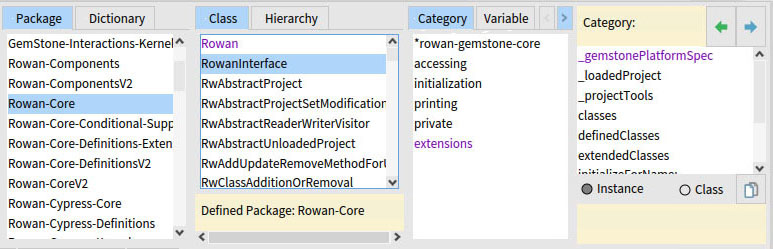
When the System Browser displays a Package, it displays a list of all classes that are associated with that Package, including classes that are in other Packages but have extension methods that are in that Package.
When the Projects Browser displays a Class, it displays a list of all methods that are defined for that class, including methods that are in the selected Package and methods that are defined in other Packages.
- A class is in normal font and a method in normal font indicate that the Class and method is defined in the selected Package or Packages.
- If the class is in normal and the method is in purple underlined, it indicates that the method is defined in a different package; the other package contains an extension method to the selected class. Use the method pop up menu item Go To Defining Package to see the Package for that method.
- A class in purple indicates that the class definition is associated with a different package; the class is included in the list of classes since it has one or more extension methods that are defined in this package. Use the pop up menu item Go To Defining Package to see the Package for that class.
In the example, the selected package holds only extension methods, so all classes in the example are purple (selecting a class masks the purple font, for readability).
- If the class is in purple and the method is in normal font, it indicates that the method is defined in the same package as the class, and that neither the class nor the definition are in the selected package. The Class and Method pane pop up menu item Go To Defining Package will show the Package for that class/method.
In the example, methods such as asDefinition are in normal font, indicating that they are defined in the same package as its class. The class RwDefinition and the method asDefinition are both defined in the package named Rowan-Definitions, while Rowan-Core-Definitions-Extensions is the selected package.
- If the class is in purple and the method is in purple (not underlined), it indicates that the method is defined in the selected package; that is, this is an extension method in the selected package.
In the example, the method comparePropertiesAgainstBase: is defined in the package Rowan-Core-Definitions-Extensions, which is the selected package, but not the package that its class is defined in.
- If the class is in purple and the method is in purple underlined, it indicates that the method is defined in a third package, neither the selected package nor the package that the class is defined on. Use the method pop up menu item Go To Defining Package to see the Package for that method.
In the example, the method diffSton: is defined in another package, Rowan-Core-Definitions-Extensions-37; neither the selected package, nor its class's package.
Other Decorations
Projects and Packages are in bold font when changes have been made. This decoration does not apply to classes or methods.
An asterisk * in front of a Project or Package name indicates that this is the current Project/Package. This is used when filing in code in gs/topaz format, which does not have packaging information.
Creating, saving, and loading Projects
The System Browser project pane menu item New... creates a new Project. This Project is only suitable for testing; there is no git repository associated with it. Additional git commands on the command line outside of Jadeite are needed.
The New... option allows you to create a new project with the given name, in the directory specified by $ROWAN_PROJECTS_HOME (as defined on the server). A Project on disk is contained within a directory named after the project, with various subdirectories.
To examine changes in your project, use the menu item Changes to open a Changes Browser describing all the changes that have not been written to disk.
You can use menu items Write... to write the source in the image to disk. After write, the Project will go from bold to normal font.
To load the project into a different repositories, use the Load... menu option, and navigate to $ROWAN_PROJECTS_HOME/projectName/rowan/specs/, and load the file name projectName.ston.
Loading code in gemstone fileout format
Code in a Rowan image should be in the rowan format. When loading code that is in the standard gemstone fileout format, this code must be rowanzied.
Code can be filed out in topaz format, or filed in from topaz format. The Filein process rowanizes the code; filein requires some care to ensure the filein complies with Rowan's rules so the rowanization process can succeed.
Fileout
Jadeite implements fileout menu items to fileout a Project, Package, Class, one or more class categories, and one or more selected methods.
Filein
Filing topaz format code into Rowan using Jadeite rowanizes the code. This places some requirements on what is filed in, since Rowan has rules for SymbolDictionaries and Packages that the filein must conform to.
Each Rowan package is associated with a single SymbolDictionary, and all classes and methods in that package must be in that same SymbolDictionary.
If your fileout includes class definitions, which specify the SymbolDictionary name, the specified name **must** match the SymbolDictionary of the package that this code will be filed into. Since the package must be created (with the correct SymbolDictionary) before you can filein, any SymbolDictionary creation expression in the filein will not be sufficient. If the SymbolDictionary specified by the class creation statements in the filein code does not exist, before filein you need to setup the correct SymbolDictionary and Package. If your filein includes classes in multiple dictionaries, you will need to break the file into multiple files per SymbolDictionary, and file these in separately.
To filein, in the System Browser:
1. If necessary, create the symbol dictionary associated with the classes in your filein code. Break this into multiple filein files by SymbolDictionary, if necessary.
To create a new SymbolDictionary, go to the Package pane, select the Dictionary tab, and use the Add Dictionary menu item.
2. Choose or create a Project.
3. Choose or create a Package for your filein code, specifying the SymbolDictionary used in the filein file.
4. Commit, to ensure your Project and Package are committed, and to allow recovery if there are issues during filein.
5. Select the Project and Package, and use the Set Current menu item. They will now have a leading asterisk.
6. File in using the Jadeite menu item File In Server File. Note this provides a dialog for files located on your GemStone server (the node on which GemStone is running). If the Pharo client is running on a different node than the server, you cannot load in from files on the client file system.
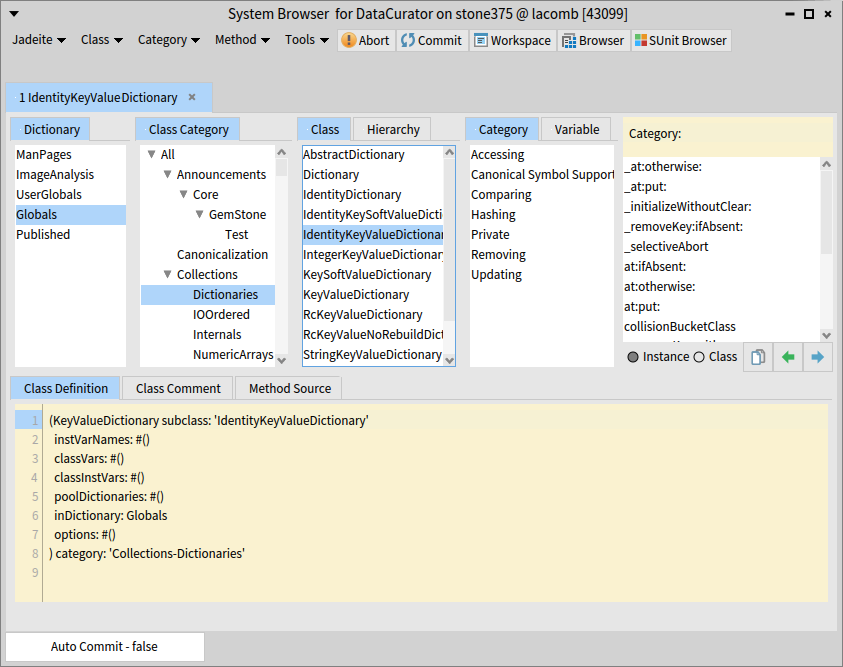
2. Console and System Browser, for Jadeite for Pharo without Rowan
In Jadeite without Rowan, code is not rowanized. Without Rowan, and as in base GemStone, there is no built-in code management system. You may use fileout to manage your code manually.
Jadeite Console
After you have installed Jadeite for Pharo, the Jadeite Console will appear.
The Jadeite Console is the main window of the Jadeite application; when you shut down this window, Jadeite logs out.
From the Console, you can open the major tools: Workspace, System Browser, and SUnit Browser; other tools are on the Tools menu.
3. SUnit Testing and the SUnit Browser
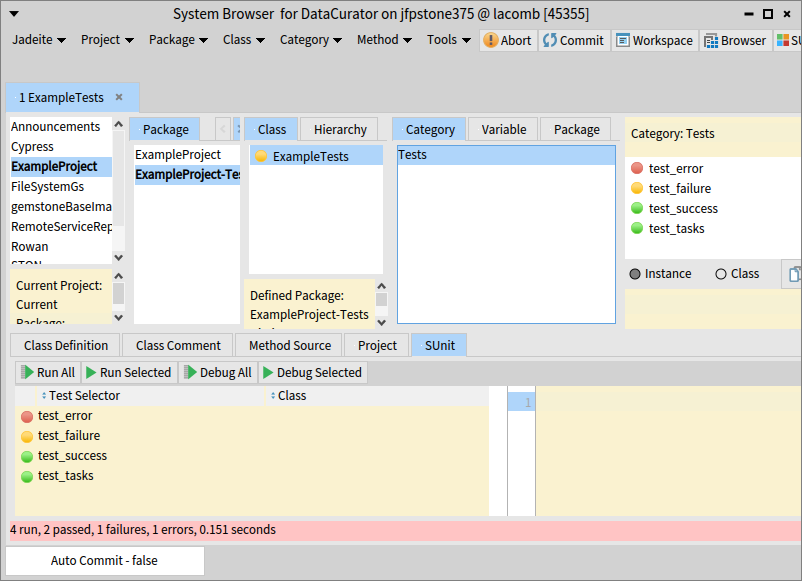
Jadeite support running SUnit tests from the System Browser, as well as from a specialized SUnit Browser. Running tests from the System Browser is particularly useful during test development.
Select a test class, and in the method pane, you will see a radio button next to tests selectors; selecting the radio button performs a #debug on that test.
The lower pane SUnit tab supports running and debugging all SUnit tests on that class, including inherited tests.
Figure 1.7 System Browser SUnit Tab
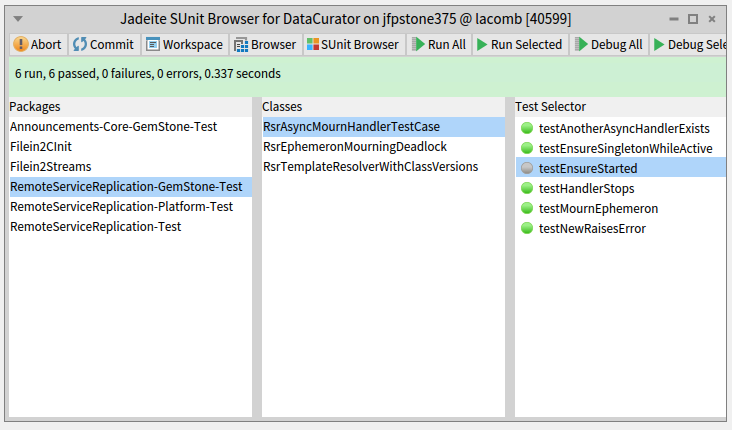
The SUnit browser provides a view of all SUnit tests in your environment, and the ability to run or debug tests on any of these classes.
Figure 1.8 SUnit Browser
4. Debugger
The Jadeite Debugger allows you to step through code and examine variables.
Figure 1.9 Debugger
5. Current known issues and limitations
Jadeite for Pharo is current in alpha, as of February 23, 2026, and there are known to be bugs and missing features. These issues may be fixed in later work.
Changes to Class definitions that encounter compile errors
When an instance variable is added to a class, and that instance variable is already defined in a superclass or subclass, one or more classes will fail to compile. When an added instance variable was already in use as a method temporary or a method argument in a method on this class or a subclass, the class is compiled, but one or more methods will fail recompile. Removing an instance variable that is referenced will also cause method recompilation failures during class compile.
Handling these cases has been problematic. There may still be significant issues. Before modifying the definition of any existing class, we strongly recommend a GemStone commit. If there are issues with recompile, abort and make the necessary changes, and commit to GemStone again before retrying.
Viewing the Class Hierarchy
Normally, the System Browser Class Pane displays the alphabetical list of classes in the selected package.
Selecting the hierarchy view tab displays the hierarchy of the class that was selected in the Class view; if more than one class was selected, the hierarchy includes all selected classes, or all classes in the package if no class was selected. The displayed hierarchy includes the specified classes, their subclasses, and superclasses up to Object. **Sibling classes at any level are not shown**. The down-pointing triangle indicates that the hierarchy is expanded; clicking on this will contract it and display a left-pointing triangle, and vice versa.
To see the full hierarchy, select a class and use the menu item expand full hierarchy.
Double clicking on a class is designed to expand the view to includes all subclasses of that class in the hierarchy view, including siblings of the selected class/classes. There are some issues with this behavior; you must specifically select the class first, before double clicking. There may be incorrect behavior such that you do not see classes that are part of the hierarchy.